TL;DR TL;DR — Quick Summary & Key Takeaways
Running local LLMs with Ollama offers complete data privacy and zero API subscription costs on consumer hardware. Pairing Ollama with efficient small models like Gemma enables fast, offline generation for everyday development tasks.
- Complete privacy: Process sensitive logs, code, and documents entirely on local hardware without cloud leaks.
- Streamlined setup: Install and pull optimised models in seconds using single-line CLI commands (
ollama run). - Hardware efficiency: Run lightweight quantized models smoothly on modern laptops with Apple Silicon or modest GPUs.
- API compatibility: Connect local models to tools and extensions via Ollama’s OpenAI-compatible REST API.
Running state of the art language models locally on your own hardware has never been more accessible. Tools like Ollama allow you to pull down massive models and interact with them completely offline, ensuring your data remains entirely private. However, pushing the limits of your hardware reveals the frustrating realities of running large models on consumer laptops.
In this post, I explore my recent experience testing the new Gemma 4 models on an M-series MacBook Air. I’ll share exactly where the hardware bottlenecks occurred, why coding performance suffered so dramatically, and how you can optimise your local setup for better results. I also suggest some alternative, smaller models that provide a much smoother experience for daily use.
Getting Started With Ollama
If you haven’t used Ollama before, it is by far the easiest way to get local models running on your machine. If you are on macOS, the simplest way to install it is using Homebrew. To install the application, open your terminal and run the following command:
brew install --cask ollama
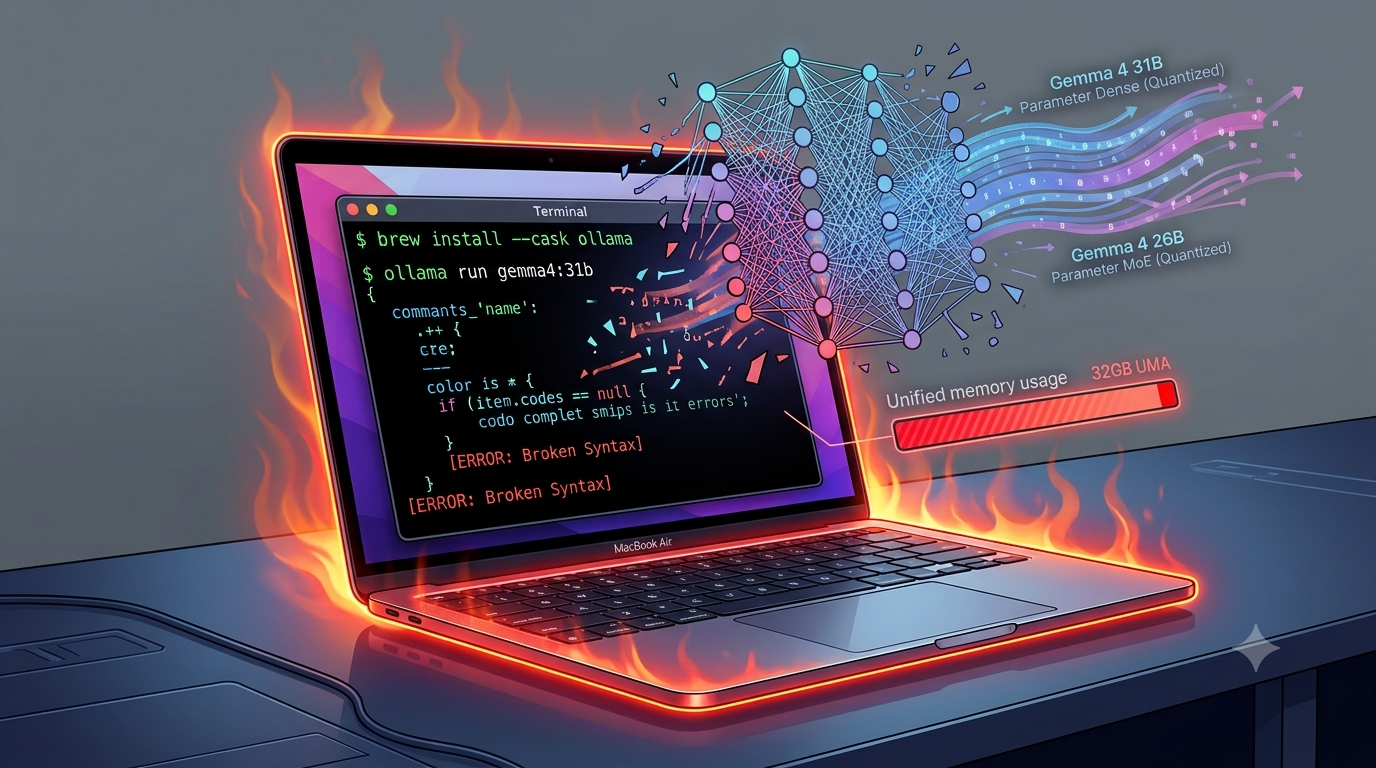
Once installed, you can start downloading and running models immediately. To run the massive 31 billion parameter dense model I tested, you simply execute:
ollama run gemma4:31b
Alternatively, to test the 26 billion parameter Mixture of Experts model, you would use:
ollama run gemma4:26b-moe
When you run these commands for the first time, Ollama will automatically download the multi-gigabyte weight files to your local storage. Once the download completes, you’ll be dropped into an interactive terminal session where you can chat with the model.
However, interacting through a command-line chat is rarely the end goal.
The true power of Ollama is that it automatically runs a background server and exposes a local REST API, typically at http://localhost:11434.
This means you can easily hook your local models directly into your favourite IDE extensions, such as Cline or Continue, or build custom tools using LangGraph.
By pointing these integrations to your local Ollama server, you get a fully integrated AI coding assistant that runs entirely on your own hardware.
A Graphical Alternative: LM Studio
If you prefer avoiding the command line entirely, you might consider LM Studio as an alternative to Ollama. LM Studio provides a polished graphical user interface that lets you easily search for, download, and chat with models directly from Hugging Face. Like Ollama, it also exposes a local REST API that you can hook into your IDE tools. However, there are a few caveats to keep in mind before choosing it over Ollama. Most notably, LM Studio is closed-source proprietary software, whereas Ollama is an open-source project. Additionally, because LM Studio relies on a heavy graphical interface, it can consume more system resources than Ollama’s lightweight background daemon. This overhead is an important consideration when you are already pushing your hardware to its absolute memory limits.
The Apple Silicon Advantage
Apple’s unified memory architecture provides a massive advantage for local AI inference compared to traditional architectures. On a standard Windows or Linux desktop, your CPU uses system RAM while your graphics card uses dedicated VRAM. If you want to run a large language model, the system must first shuttle gigabytes of model weights from the system RAM across the PCIe bus and into the GPU’s VRAM. This transfer creates a significant bottleneck, and you are ultimately strictly limited by the VRAM capacity of your graphics card, which is often far smaller than system RAM.
Apple Silicon sidesteps this problem entirely by pooling all memory together into a single, unified block. The CPU and the GPU share zero-copy access to the exact same physical memory chips. This allows you to allocate almost your entire system RAM directly to the GPU for loading massive model weights instantly. With 32GB of unified memory on my MacBook Air, I expected to run some very capable models. However, even 32GB gets consumed incredibly quickly when you load models exceeding twenty billion parameters.
Pushing the Limits With Gemma 4
I decided to test two variations of the new Gemma 4 architecture using Ollama. First, I tried the massive 31 billion parameter dense model. Next, I tested the 26 billion parameter Mixture of Experts (MoE) model. A Mixture of Experts model works by dividing its neural network into specialised sub-networks, or “experts”. During inference, a router network directs each token to only the most relevant experts, meaning only a fraction of the 26 billion parameters are actively computing at any one time. While this drastically reduces the computational overhead and speeds up generation, the entire 26B model still has to be loaded into your RAM. Consequently, both of these models pushed my MacBook Air right up to the absolute limit of its 32GB unified memory.
Once the models loaded into memory, the performance was immediately disappointing, particularly when writing code. The models would frequently stop generating mid-line. Worse still, they would occasionally place a comment acknowledging that they had made a mistake. However, they left the uncompilable code directly in the source file. In some cases, the model even overwrote perfectly good code with bad, incomplete syntax.
The speed of the 31B dense model was incredibly slow. When a model consumes nearly all your available RAM, you are left with almost nothing for your context window. You cannot have a lot of tokens in your context window for that size of model in that much RAM, forcing the system to rely heavily on slower swap memory on the SSD. This results in excruciatingly slow response times that completely disrupt any coding workflow.
The Thermal Reality of a Fanless Laptop
Beyond memory constraints, the physical hardware limitations of the MacBook Air quickly became apparent. My MacBook Air got red hot to the touch while it was generating responses from these local models. Because the Air relies on passive cooling and lacks an internal fan, sustained heavy processing causes rapid heat buildup inside the aluminium chassis. Unlike short burst tasks like opening an app, token generation is a prolonged, sustained workload that pushes the silicon hard for minutes at a time. When the system gets too hot, severe thermal throttling kicks in, artificially slashing the processor’s clock speeds to prevent permanent damage to the logic board. This throttling compounded the memory swap issues, slowing the token generation down to a crawl. I decided not to push it any further as the machine was new and I wanted to protect the hardware.
Better Approaches for Local Inference
If running massive 30B+ models on a laptop is a bad idea, you might wonder what local AI is actually good for. The key is finding the right balance between model size, quantisation, and your available hardware.
Understanding model quantisation
When you download a model through Ollama, you are typically using a quantised version. Quantisation compresses the model by storing its floating-point weight values much more coarsely, often reducing them from 16-bit down to 4-bit precision to save RAM. This means what should be a pin-sharp mathematical decision during generation instead becomes like operating a calculator while wearing thick gardening gloves. You might get an answer that looks roughly right at first glance, but the coarse precision introduces subtle, misleading logic errors. This perfectly explains why the heavily compressed Gemma 4 models struggled so much with strict syntax and code generation despite their massive parameter counts.
Choosing the right tool for the job
For complex tasks like writing code, I highly recommend using smaller, highly optimised models. Models like Llama 3 8B or Phi-3 Mini easily fit into 8GB of RAM, leaving plenty of overhead for a massive context window. Because they are physically smaller, you can run them at much higher precision levels (like 8-bit) without hitting your memory ceiling. They run incredibly fast, maintain high logical precision, and will not cause your fanless laptop to overheat. You can reserve local models for tasks where privacy is paramount, such as summarising confidential documents or drafting emails offline.
Wrapping Up
I hope this saves you from melting your own laptop while chasing parameter counts. If you stick to smaller models that respect your hardware limits, local AI remains an incredibly powerful tool. Happy coding!