
Microsoft announced on 18th December 2024 that they were introducing a free tier for GitHub Copilot. So what does this mean, how do you set it up and how can you use it? This post focusses specifically on the integration with Visual Studio Code, but you can use GitHub Copilot with any supported IDE.
What is GitHub Copilot Free?
GitHub Copilot is a coding assistant that works with you on your coding problems. It suggests code snippets that it thinks you would have written yourself, allowing you to tab complete your code instead of writing it yourself. It’s a bit like working with someone else as a pair programmer: someone who understands what you’re trying to do.
It’s important to understand that this doesn’t mean you’ll be able to just write code without understanding it yourself. GitHub Copilot is a form of Generative AI and it will sometimes make things up. Overall I think it does more good than harm though, and it can make you exceptionally fast.
The free tier allows you to have up to 2,000 code completions in a month and 50 chat messages.
Setting up GitHub Copilot in Visual Studio Code
Setting up GitHub Copilot is really nice and simple. Just follow these steps.
Install the Visual Studio Code GitHub Copilot Extension.
Choose the Copilot icon on the right of the Visual Studio Code search bar and select Open Chat at the top of the menu that appears.
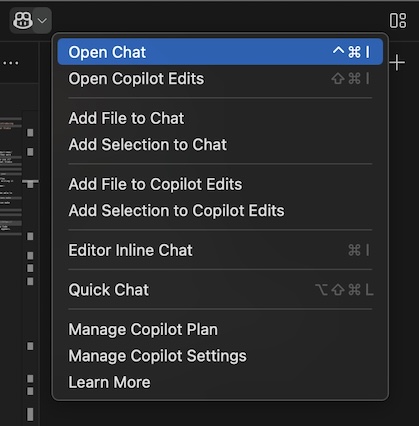
Select that you want to sign into a different account and choose to sign in using GitHub.com.
If you are prompted to allow GitHub Copilot Chat to sign in using GitHub, click Allow.
Complete the sign in and GitHub Copilot Chat will be ready to answer any questions you have while you’re writing code.
How to use your new coding assistant
Now that you’re up and running, what can this do?
You’ve already seen the chat function working.
You can ask GitHub Copilot Chat to suggest approaches to your coding problems.
Sometimes I use this to ask it something like “Should I use getters and settings in Python classes, or is there a better way?”
The answer you’ll get is that Python doesn’t typically use getter and setter methods directly and instead you should use the @property method decorator and the @variable_name.setter decorator for the setter.
However, the real magic comes when GitHub Copilot helps you to write the code directly. Let’s do a little exercise to see this in action.
Create a new file called
copilot_test.pywhich we are going to write some Python in. We save the file so that Visual Studio Code automatically switched to Python syntax highlighting which GitHub Copilot uses to ensure it provides valid syntax for you.Start your file with the following code:
class ListSorter:
  def __init__(self, list):
    self._list = list
Add a couple of carriage returns and magic should begin to happen. In my case, you see
def sort(self):appear as a suggestion, which is what I was hoping to see. If you see this, press tab to have the line filled in for you, otherwise start typing that line and it should pick up where you’re going with the code and make the valid suggesting after a few keystrokes.As soon as you press tab and complete the line, the next line should get suggested. Hopefully the suggestion will also be sensible. In my case it suggested
return sorted(self._list)which is again what I wanted to see.
OK, so we’ve seen what this can do, and the more hints you give it the better. So be sure to write the documentation for your intended methods before writing the method and you’ll find it makes better suggestions. For example, what if we want to make a sort method that can sort ascending, descending and also ignoring case? Let’s write some method documentation and see if GitHub Copilot can work out the implementation for us!
Let’s write the method documentation. I actually didn’t write all this myself, but I start suggesting the parameter names and GitHub Copilot wrote the parameter description for me!
# Sort the list with the following parameters:
# - reverse: True if the list should be sorted in descending order
# - case_sensitive: True if the list should be sorted in a case-sensitive manner
Start a new line and wait a moment for a suggestion from GitHub Copilot. You might get the method appear all at once, or you might have to tab complete each line. This is what I was given.
def sort_advanced(self, reverse=False, case_sensitive=False):
  return sorted(self._list, reverse=reverse, key=lambda x: x if case_sensitive else x.lower())
Obviously, you might want to change the method name if you don’t like this one.
You could ask GitHub Copilot to suggest something for you.
To do this, highlight the name, right-click and choose the Copilot menu option and then Add Selection to Chat.
Now ask your question in the chat window: “Can we come up with a better name for this?”
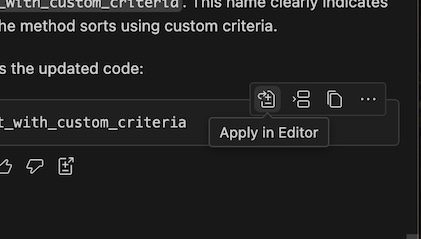
You should find that it will suggest something, and if you hover over the suggestion, you can choose the Apply in Editor button to let Copilot make the edit for you.
Wrapping up
So today we’ve:
- Taken a look at what GitHub Copilot is and how you can use it to speed up your work with software code.
- Set it up in Visual Studio Code and started a chat session with it.
- Written some Python code, taking suggestions from GitHub Copilot.
- Done some basic refactoring with GitHub Copilot.
I hope this was useful to you. If you have any comments, or want any advice, please reach out to me.